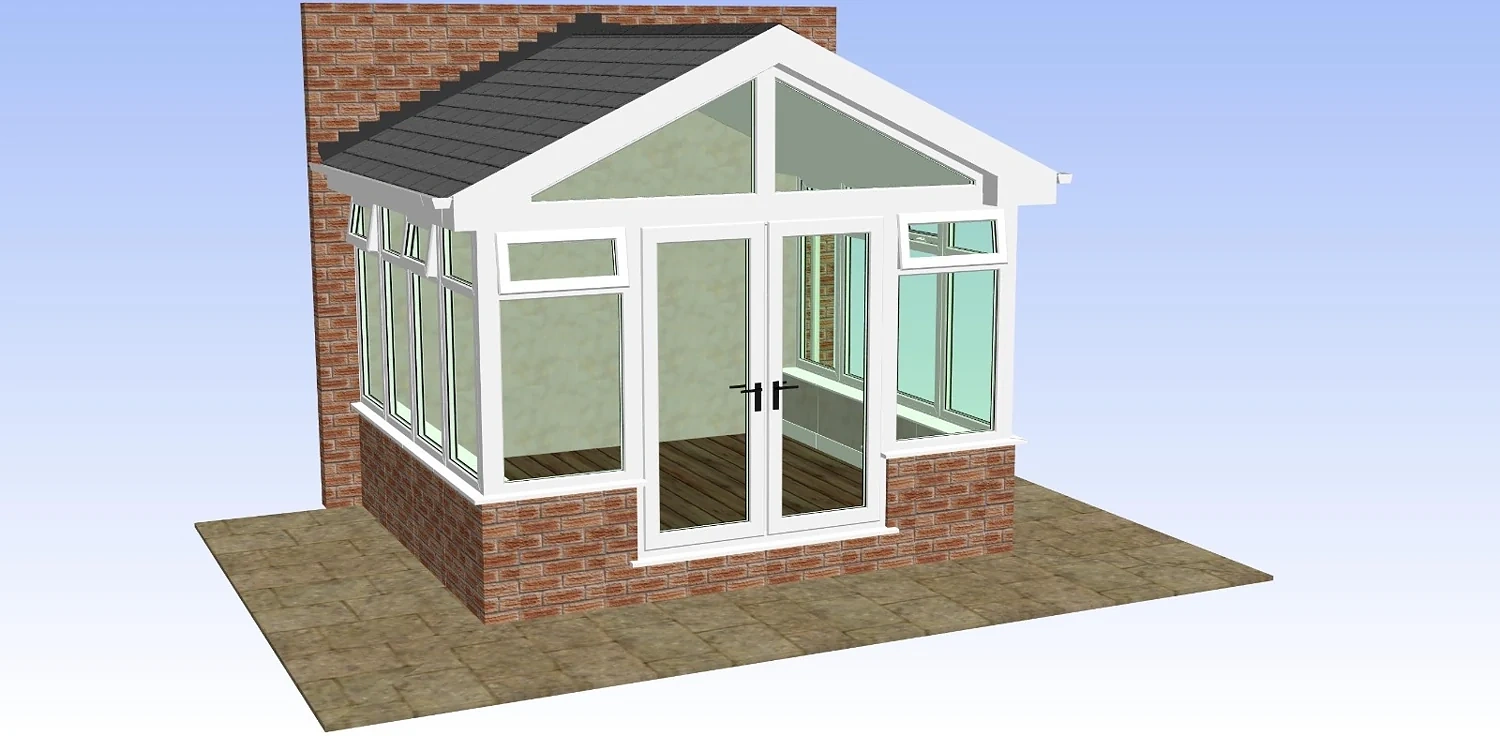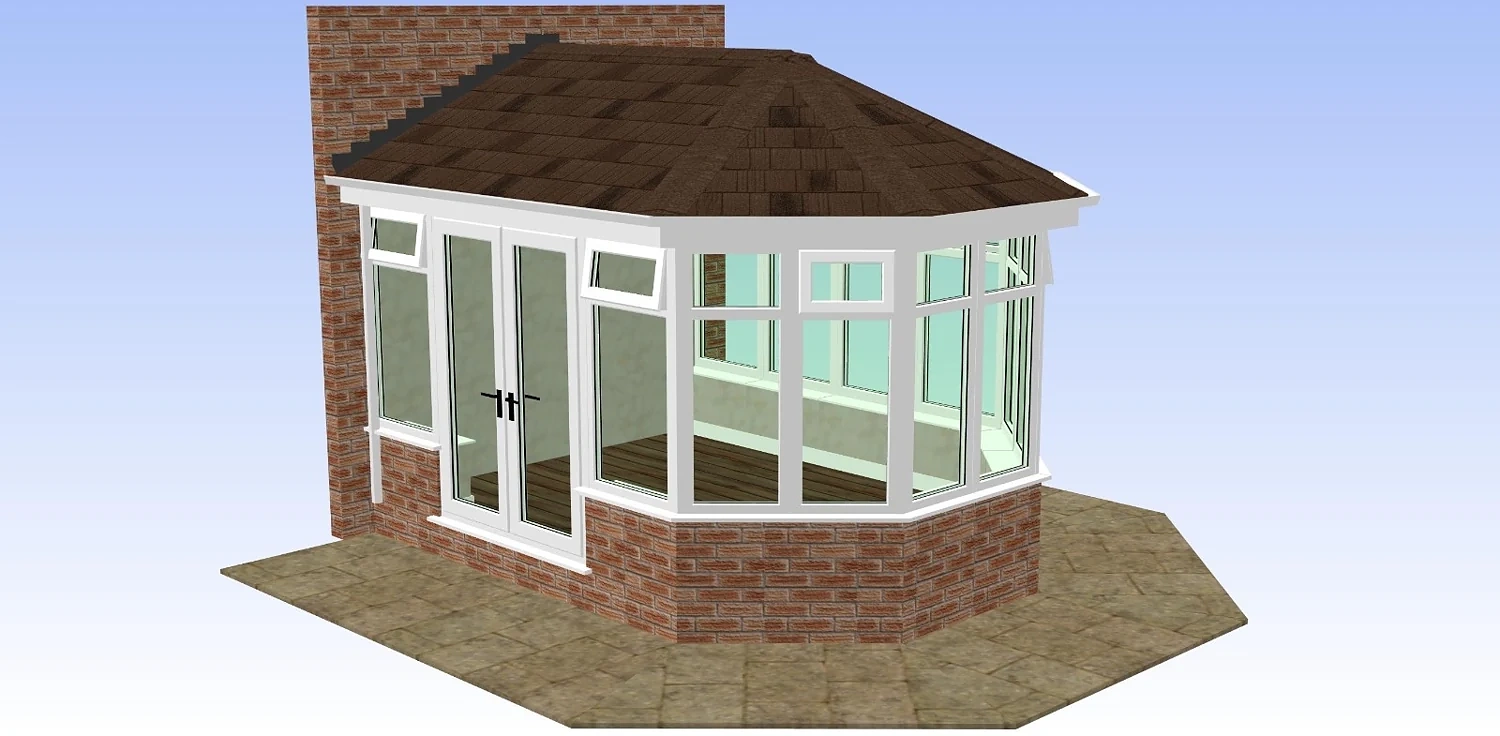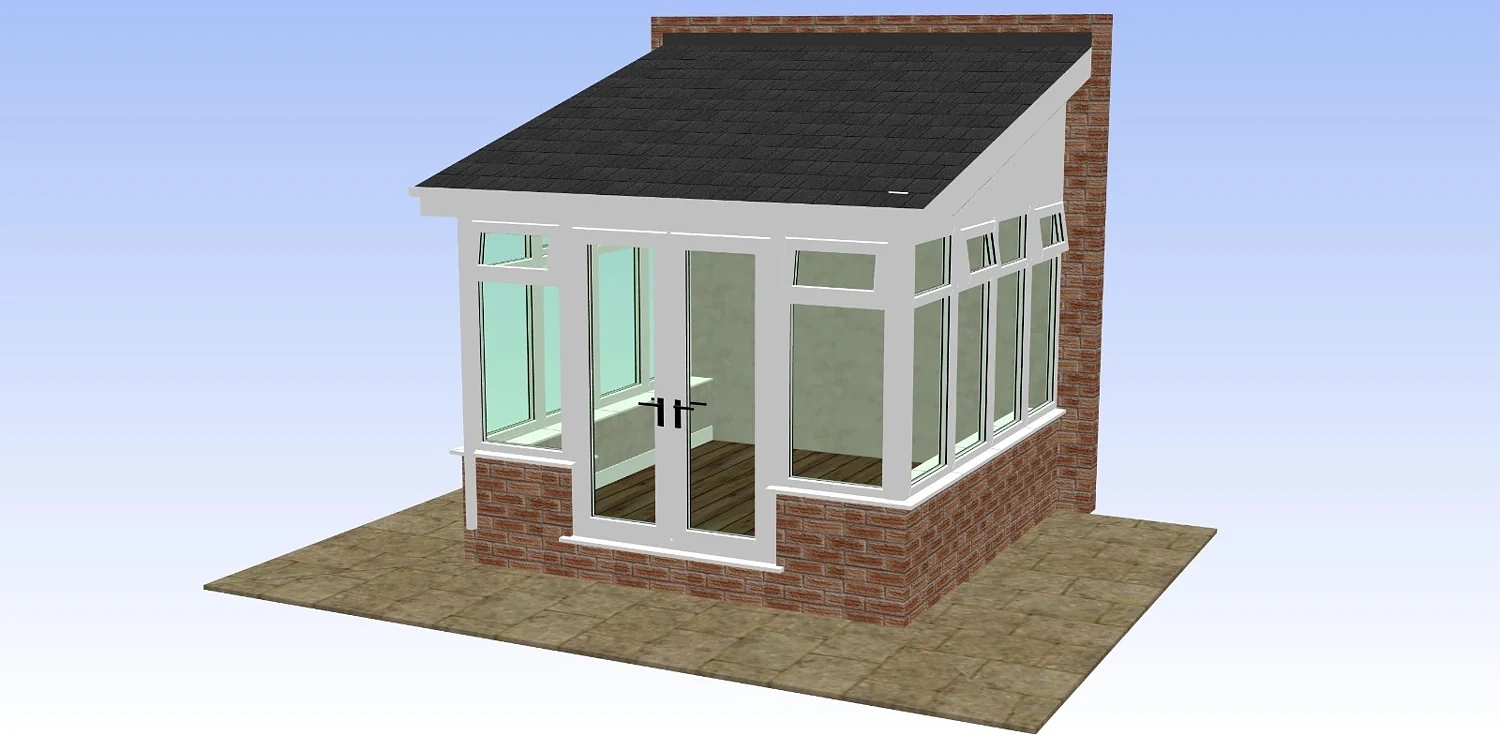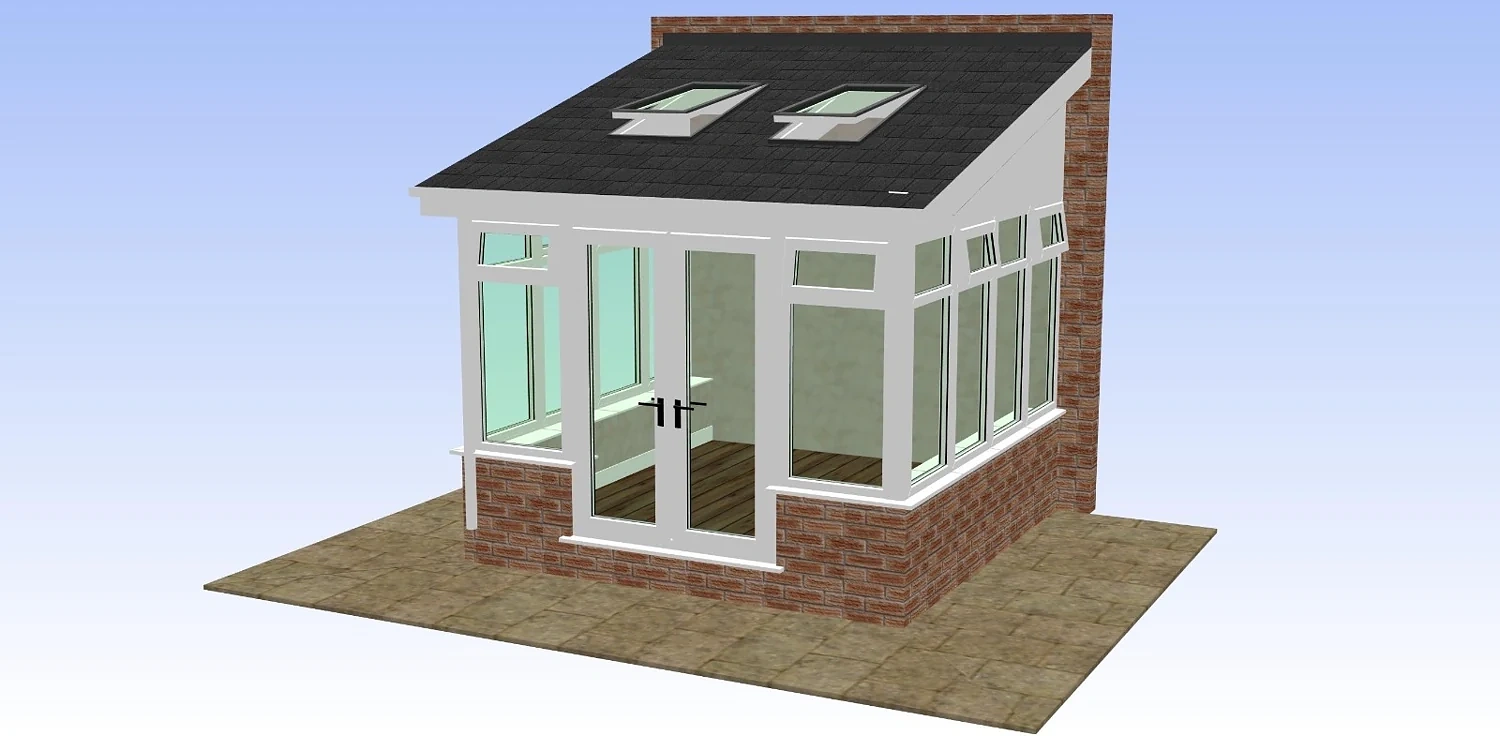
CAD spec guide for installers

Pick a CAD style, send your sizes, and request the design.

Use this page as a quick visual menu for conservatories, brick extensions and garden buildings. Choose the closest style, add your dimensions and finish choices, then request a CAD your customer can understand.

  • One request, one credit — no complexity pricing
  • Built on professional PST conservatory design software
  • Prepaid credits, no subscription
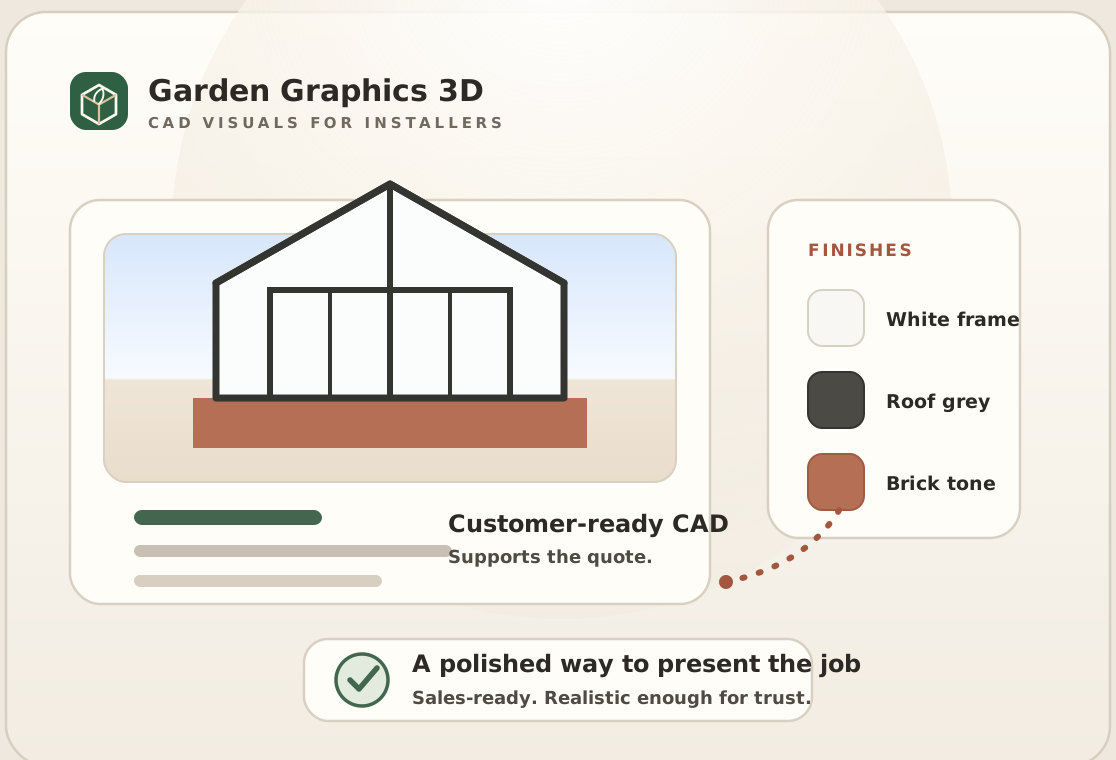
Premium Garden Graphics 3D brand board with CAD visual, material swatches and customer approval cue
A more polished way to present the job.Premium enough for sales, realistic enough for customer trust.
A practical sales aid

Show the proposed build clearly before the customer commits.

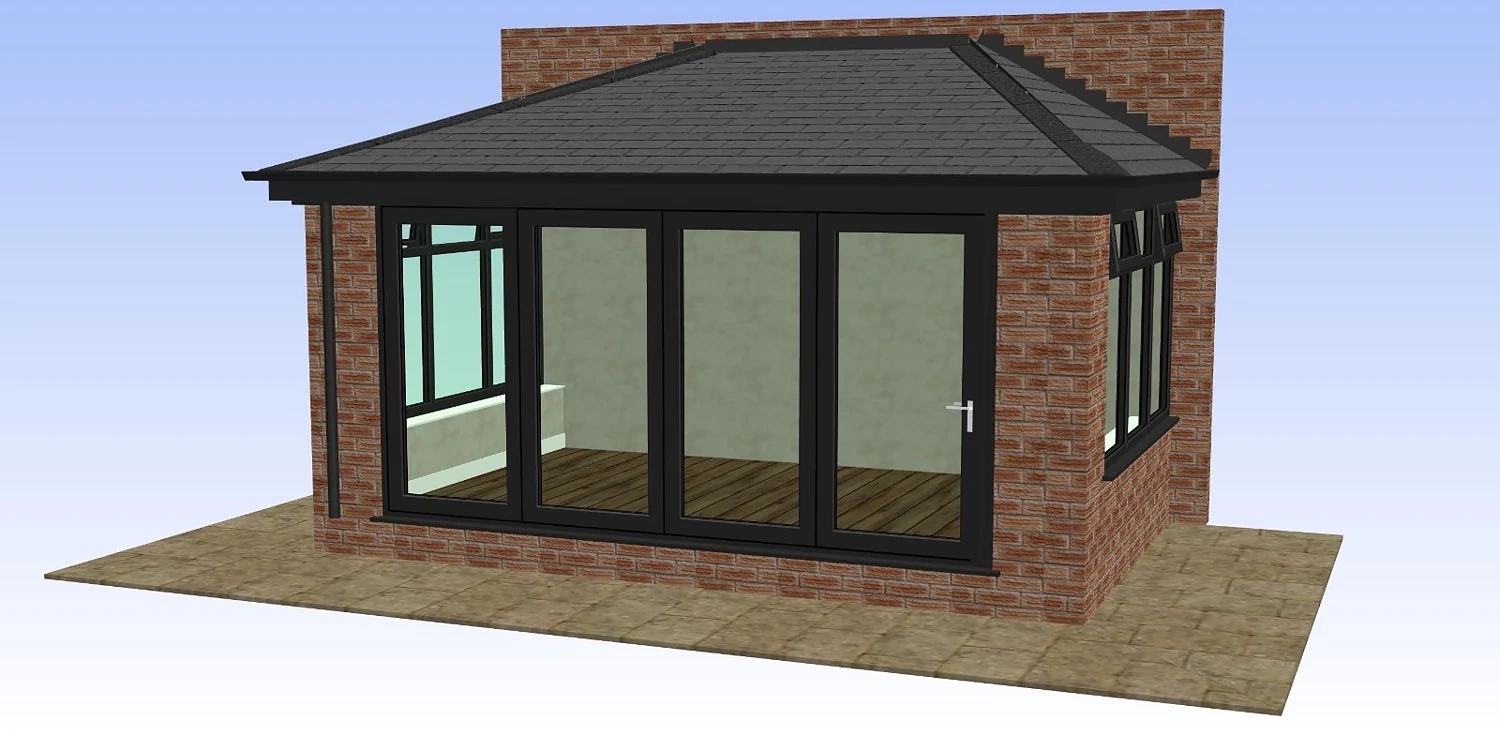
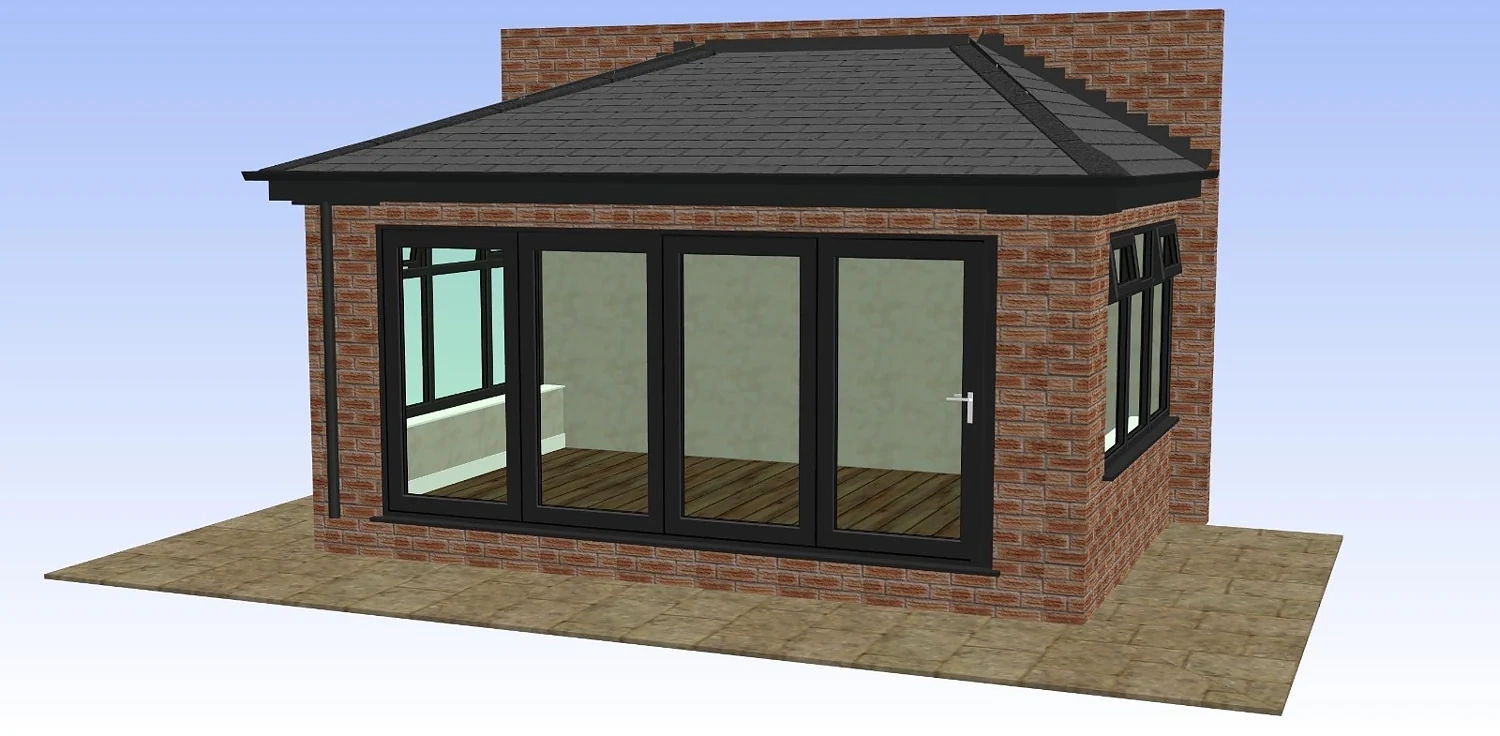
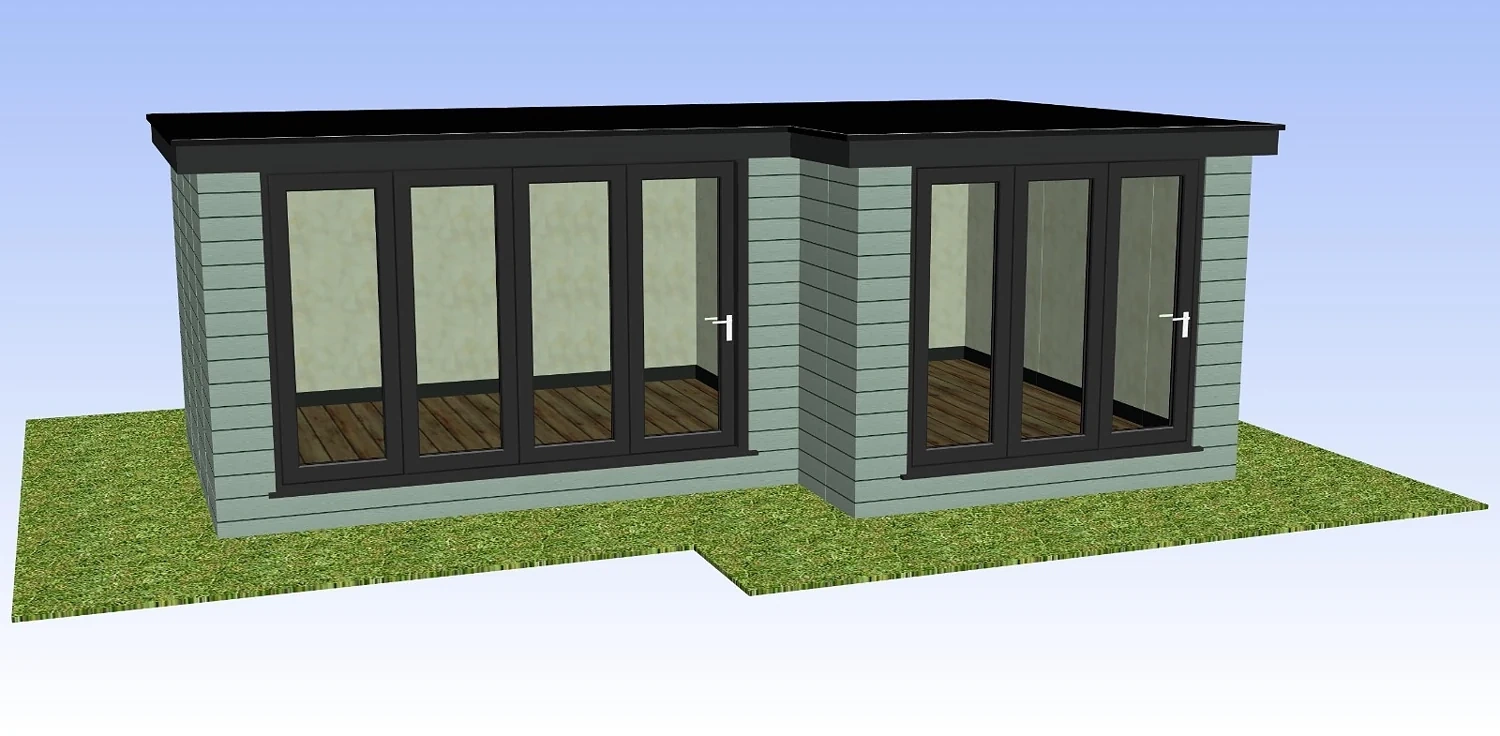
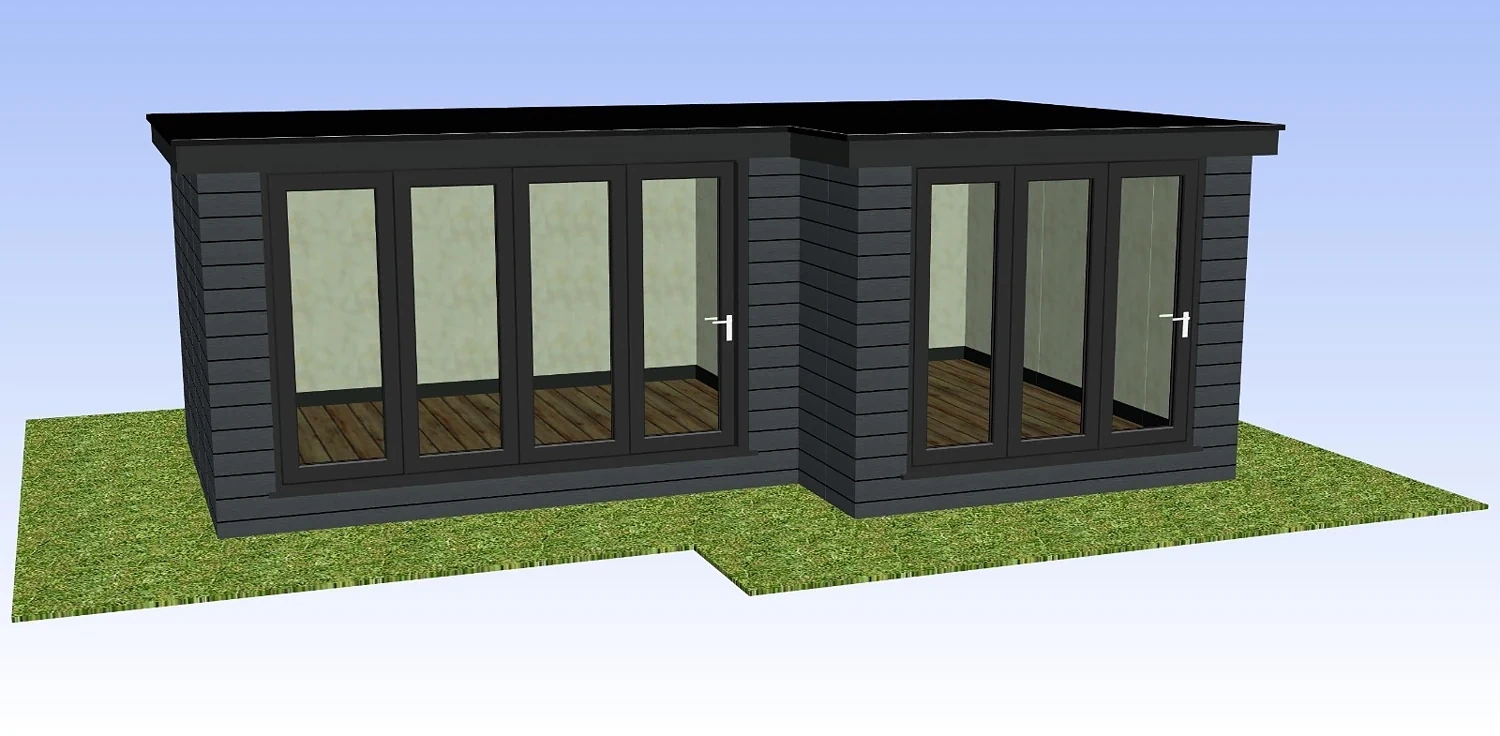
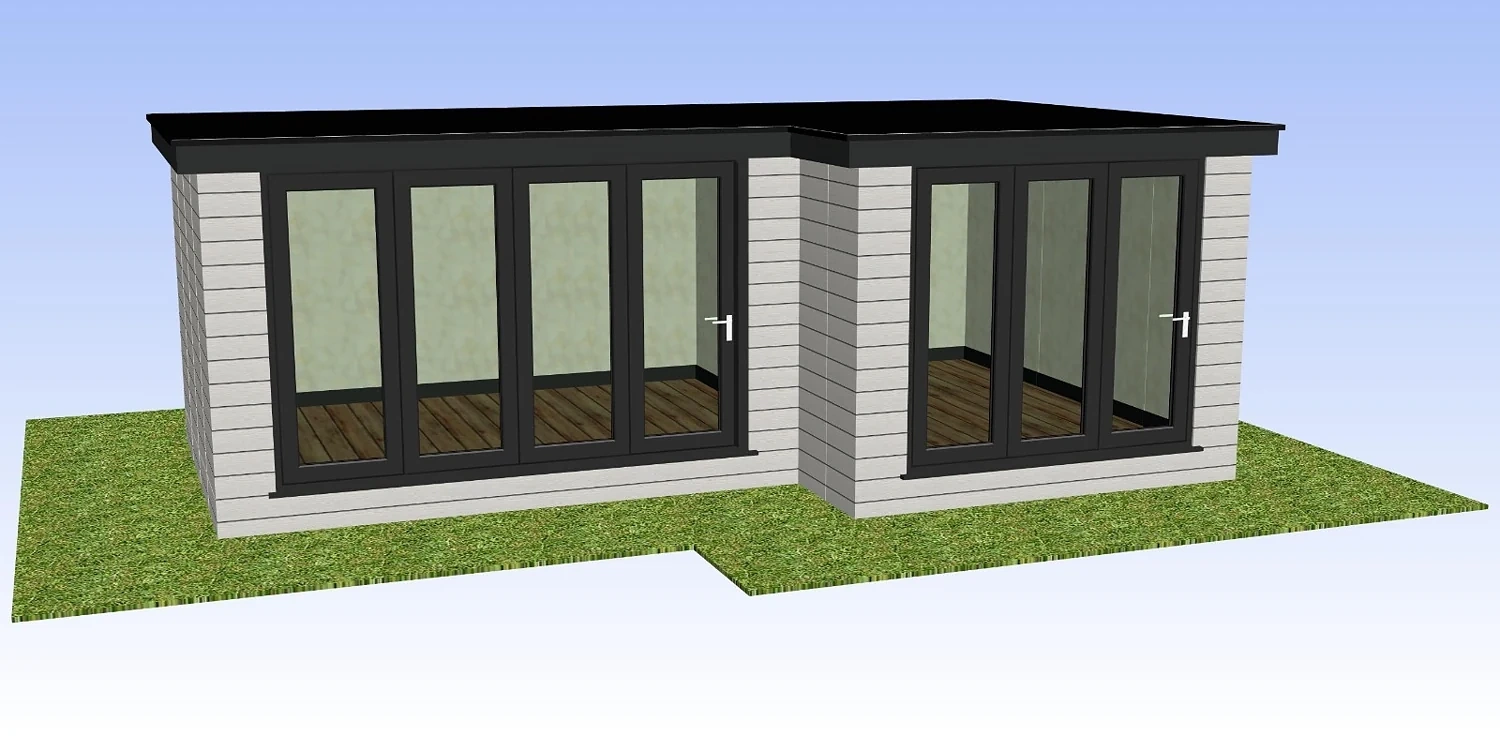
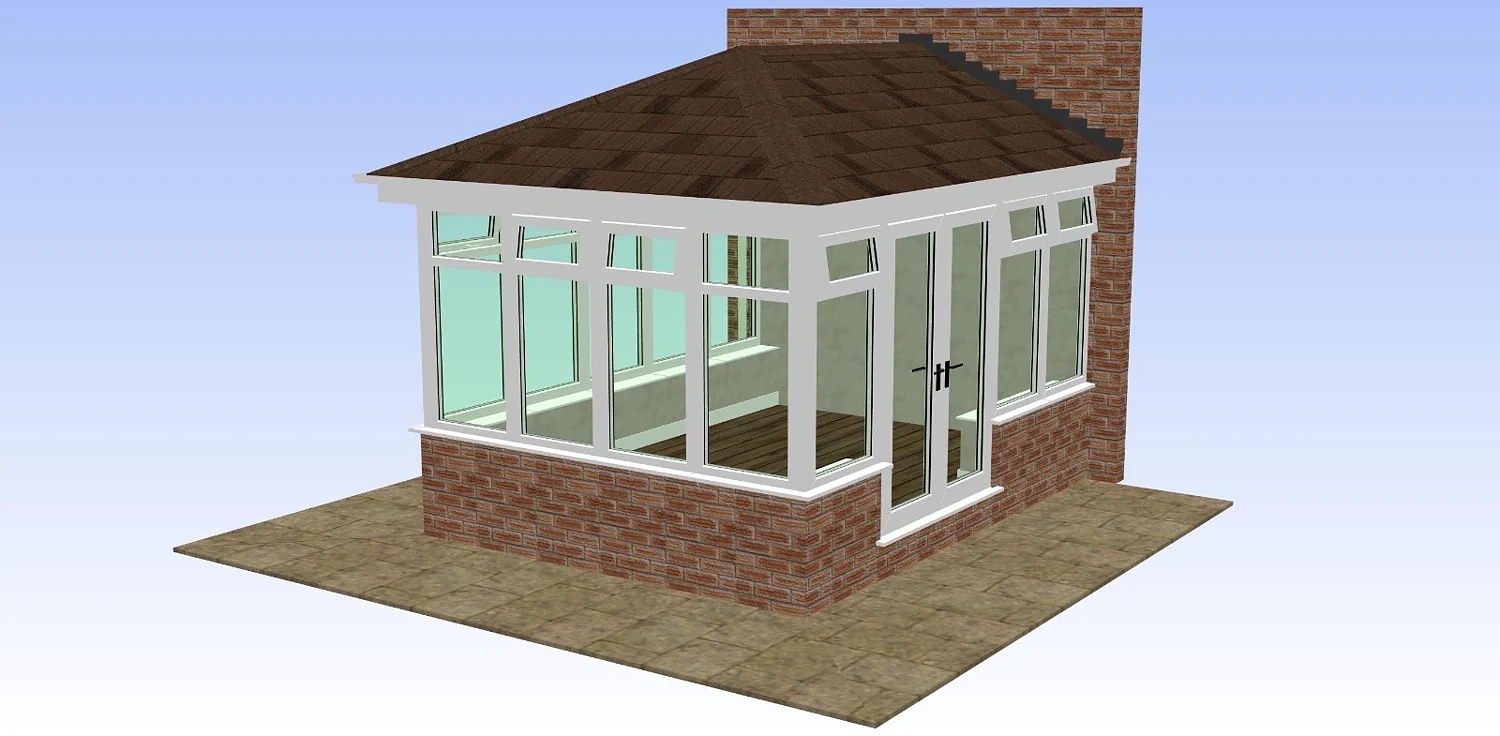
Most buyers struggle to picture a conservatory, extension or garden building from a quote alone. A clear CAD visual gives them a realistic planning-stage view of the shape, roof, brickwork, frames and openings, so the conversation becomes easier for everyone.

They see the idea before they buy it

CAD visuals make the proposal easier to understand, so customers can discuss details with more confidence.

You look prepared and professional

A clean visual alongside your quote shows care, clarity and attention to the customer’s actual project.

It helps the decision move forward

When the customer can see what is being proposed, questions become more specific and decisions are easier to make.

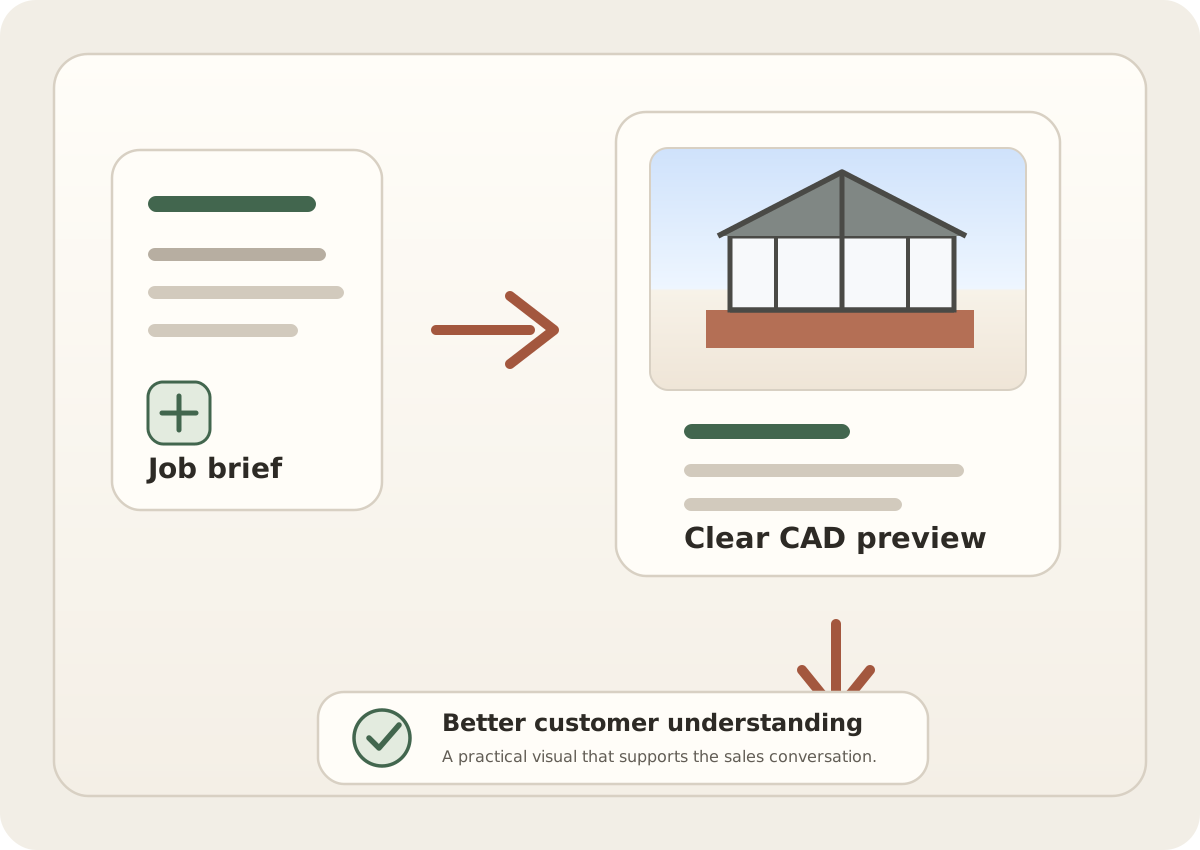
Simple visual showing a job brief becoming a CAD preview and then a confident customer decision
Who it's for

Made for the people who quote, design and fit the jobs.

If your business sells or installs glazed and garden products, the visuals slot into a normal customer journey: enquiry, survey, quote, design discussion and decision.

Conservatory installers

Present full builds — roof style, glazing, brickwork and finish — exactly as the customer will receive them.

Garden building companies

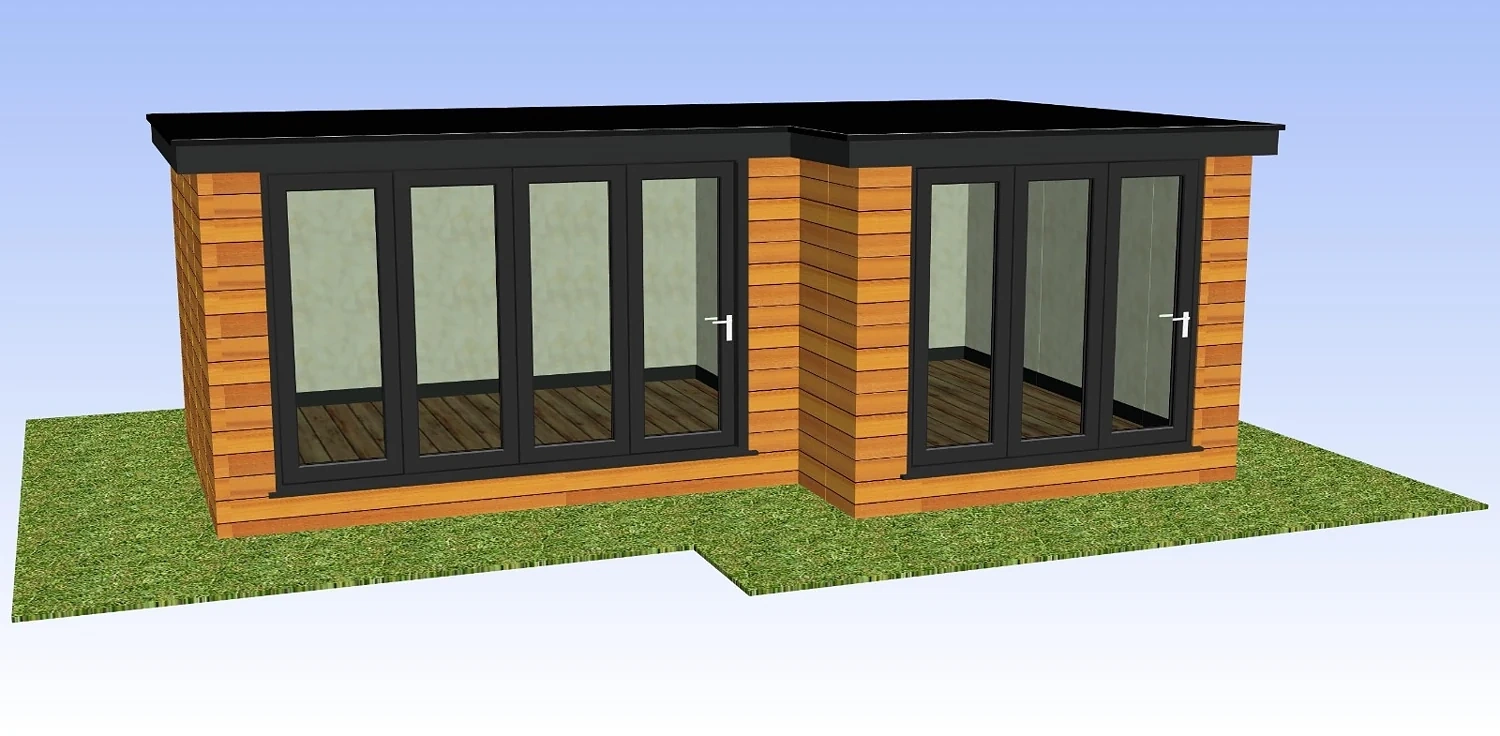
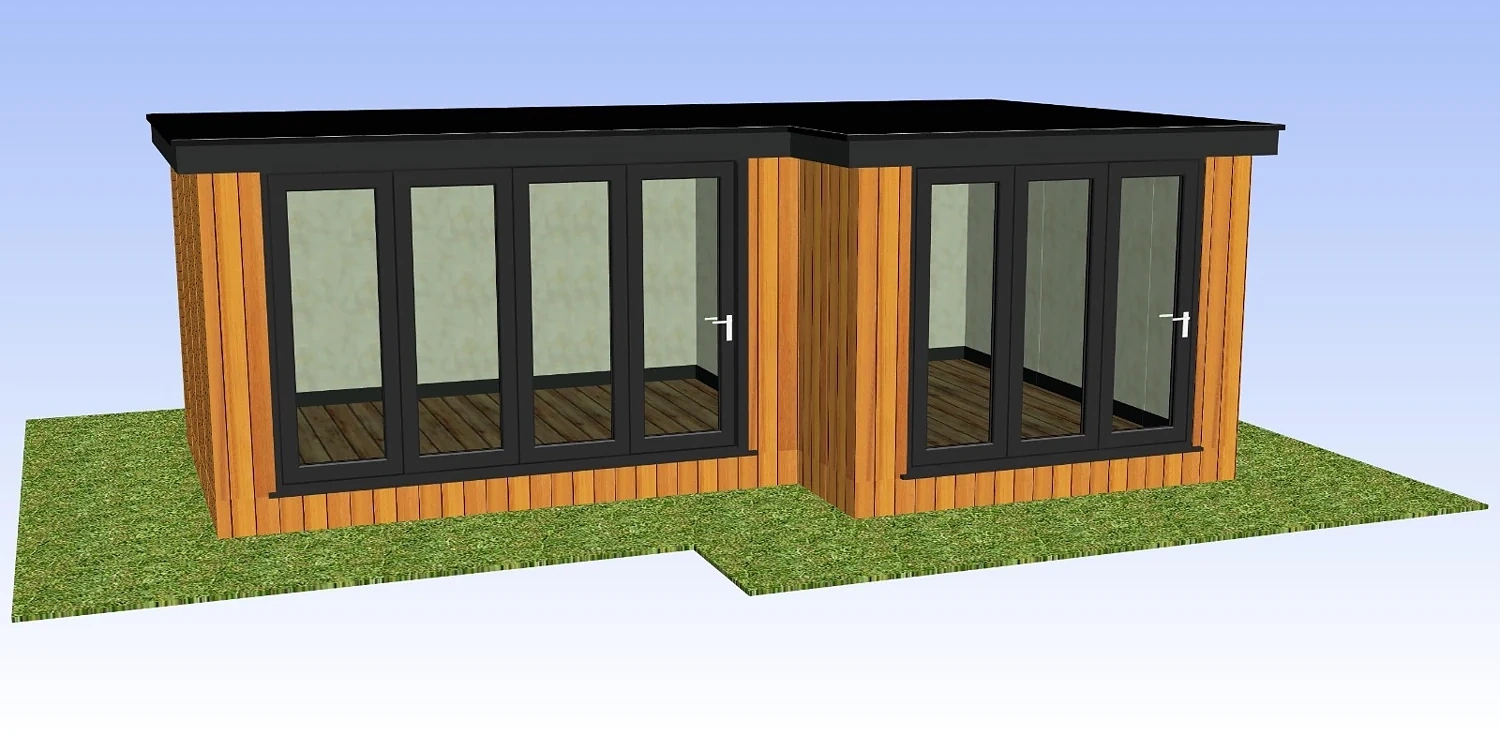
Show standalone studios, offices and outdoor buildings in context, complete with cladding, glazing and landscaping.

Customer confidence boost

Customers respond better when they can clearly see the proposed design before they make a decision.

Solid roof conversion fitters

Demonstrate the transformation of replacing a tired polycarbonate roof with a warm, solid one.

The request flow

From enquiry to usable CAD preview in four steps.

1

Buy credits

Purchase a CAD Credit pack online. Your balance is ready to spend straight away.

2

Submit your brief

Send the dimensions, product choices, finishes and a photo of the property. The clearer the brief, the better the result.

3

We build the CAD

We model and render your visual to spec. Turnaround begins once payment and all information are in.

4

Present & discuss

Show the customer a clear proposed visual, answer questions, and move the job forward with confidence.

A request only begins once all the information we need is provided. Minor tweaks like a small visual adjustment to the same design are included; a new style, new layout or major change counts as a new CAD request and uses another CAD Credit. Full details are set out in our Terms & Conditions.

CAD request builder

Build a clean CAD specification without writing a long brief.

Choose the closest options, upload the right references and review everything before using a CAD Credit. Your CAD will be created from the specification and files submitted.

Job details Sketch + photo Review + send

Step 1 of 9Start your CAD request

Step 1

Start your CAD request

These details help us label and return the CAD correctly.

Use the trading name you want shown against the request.
Who should we contact if anything needs checking?
This is where the CAD return and updates should go.
Useful if a small detail needs confirming quickly.
Use your quote number, customer surname, postcode area or internal job reference.
Step 2

What are we designing?

Choose the project type that best matches the customer’s proposed build.

Step 3

Choose the closest style

Pick the nearest starting point. The uploaded sketch and dimensions will guide the final CAD.

Step 4

Sizes and required references

Upload the essential references before choosing finishes. This keeps the request clear and reduces avoidable errors.

Enter the overall width using mm where possible.
Enter the projection from the house or main elevation.

Please upload a clear sketch showing the shape and key dimensions of the design. This gives us a much clearer starting point and helps us produce a more accurate final CAD first time.

If the design includes important roof details, openings or features, please mark these on the sketch too. Accurate roof and survey sketches help reduce avoidable errors.

Please upload a photo of the existing property area so we can tailor the CAD more closely to the real building and create a better matched finished result.

Step 5

Choose the roof type

Keep this simple. Choose the roof specification you want shown in the CAD.

Step 6

Choose the finish

Select the main frame and roof tile colours for the CAD visual.

Frame colour

Roof tile colour

Step 7

Doors, windows and openings

Choose the main layout details that are most useful to specify clearly. Smaller details should be shown on the uploaded sketch.

Main opening style

Main opening position

Window layout level

Step 8

Your CAD output

Standard professional 3D world angles are included as standard.

Included

Professional 3D CAD visuals

Clear 3D views suitable for quotes, customer discussions and sales presentations.

Step 9

Review your CAD request

Please check your sizes, selected options and uploads carefully before sending.

Your CAD will be created from the details and files supplied in this request.

If the submitted information is incorrect or incomplete, further work may require a new CAD request or amendment.

This front-end builder is ready for presentation and testing. Before going live, connect submissions and uploads to your email, CRM or payment workflow.

Finished CAD only

Request a Tweak to Your CAD

Each CAD request includes one return for minor tweaks if needed. Please keep this request focused on the specific tweak you want us to make. Major design changes or new layouts will be treated as a new CAD request.

Upload the CAD visual you want adjusted so the tweak can be checked against the correct finished file.

Structured tweak category

Select the closest category first so the request stays focused.

0/220 characters. Keep this focused on the specific tweak you want us to make.

This tweak flow is for one focused return on an already completed CAD. A new style, new layout or major change should be requested as a new CAD.